

How to inspect HTTPS traffic on iPhone without a Mac
By Ryan · Published 2026-07-27
You can read the decrypted HTTPS traffic of any app on a stock iPhone without owning a computer. It takes two things: a root certificate the phone trusts, and something on the device that terminates TLS in the middle. Both are ordinary iOS features — a user-installed certificate profile and a NetworkExtension proxy — and neither needs a jailbreak. The Mac requirement everyone assumes comes from the tooling, not from iOS: every path in Apple's Recording a Packet Trace starts with a Mac, and Charles and mitmproxy need a computer on the same network to point the phone at.
The whole method is three steps
Inspecting HTTPS on iPhone without a computer means installing an on-device inspector, trusting the certificate it generates, and letting it publish a local proxy configuration. In Tracer that's a three-step checklist that takes about a minute.
- Install the certificate. The app serves a configuration profile from 127.0.0.1 and iOS asks whether to download it. Install it from Settings, where it appears as "Profile Downloaded".
- Trust it explicitly. Settings → General → About → Certificate Trust Settings, then turn on full trust for the new root. iOS treats installing and trusting as two separate decisions, and this is the step people skip — a certificate that's installed but not trusted decrypts nothing.
- Allow the VPN configuration, then start a capture.
The setup guide has a screenshot of every dialog, and how to see network requests on your iPhone walks the same three steps with the troubleshooting attached. Once it's done, open the app you want to watch and use it — requests appear as they happen.
Why HTTPS needs a certificate at all
TLS is designed to make exactly this hard: the client refuses to send plaintext to anything that can't present a certificate signed by an authority the client already trusts. An inspector answers the app's connection itself and presents a certificate for the requested host that it signed a moment earlier. The app accepts it only because the signing root is in the device's trust store — which is why you install one, and why the phone makes you say yes twice.
This is the same mechanism Charles Proxy and mitmproxy use on a desktop. The only thing that changes on iPhone is where the middle is. How on-device network inspection works takes that apart at the level you'd need to build one, down to the contents of the certificate the phone is handed.
The "VPN" iOS asks you to allow isn't carrying your traffic
Tracer's VPN profile does not tunnel packets anywhere — it exists so that iOS will accept a device-wide proxy setting. On an iPhone with no MDM enrollment, the only way to set an HTTP proxy that applies to cellular as well as Wi-Fi is for a NetworkExtension provider to publish NEProxySettings. The tunnel is the carrier for that setting and nothing else.
Three details make that checkable rather than merely reassuring. The
provider claims a single route inside 198.18.0.0/15, the
range RFC 2544
reserves for benchmarking — nothing real is routed there, and the code
never reads packetFlow, so nothing is captured at the packet
layer. Every hostname is matched by declaring the empty string as a match
domain, the empty string being a suffix of every hostname. The proxy
itself listens on loopback inside the extension process, so the path is:
app → system proxy setting → 127.0.0.1 → the real origin server.
The VPN icon in the status bar makes people assume their traffic is going somewhere. It isn't. It also isn't always-on: the tunnel runs only while a capture session is active, so it doesn't sit between you and the internet for the rest of the day the way a commercial VPN does.
What a decrypted request actually looks like
Each HTTPS connection arrives at the proxy as a
CONNECT host:443 line; the proxy answers
HTTP/1.1 200 Connection Established and then performs the
TLS handshake itself, using a leaf certificate minted for that hostname
on the spot. From there it's a normal HTTP conversation that gets
recorded and forwarded on.
Every exchange is stored with:
- method, full path, status code and HTTP version;
- request and response headers, verbatim;
- both bodies, decoded — JSON, form data, protobuf blobs;
- start and end timestamps, so you get a duration per request (the PostHog call below took 592 ms);
- the remote IP, plus the cloud provider and region it resolves to, frozen onto the connection at the moment it was made.
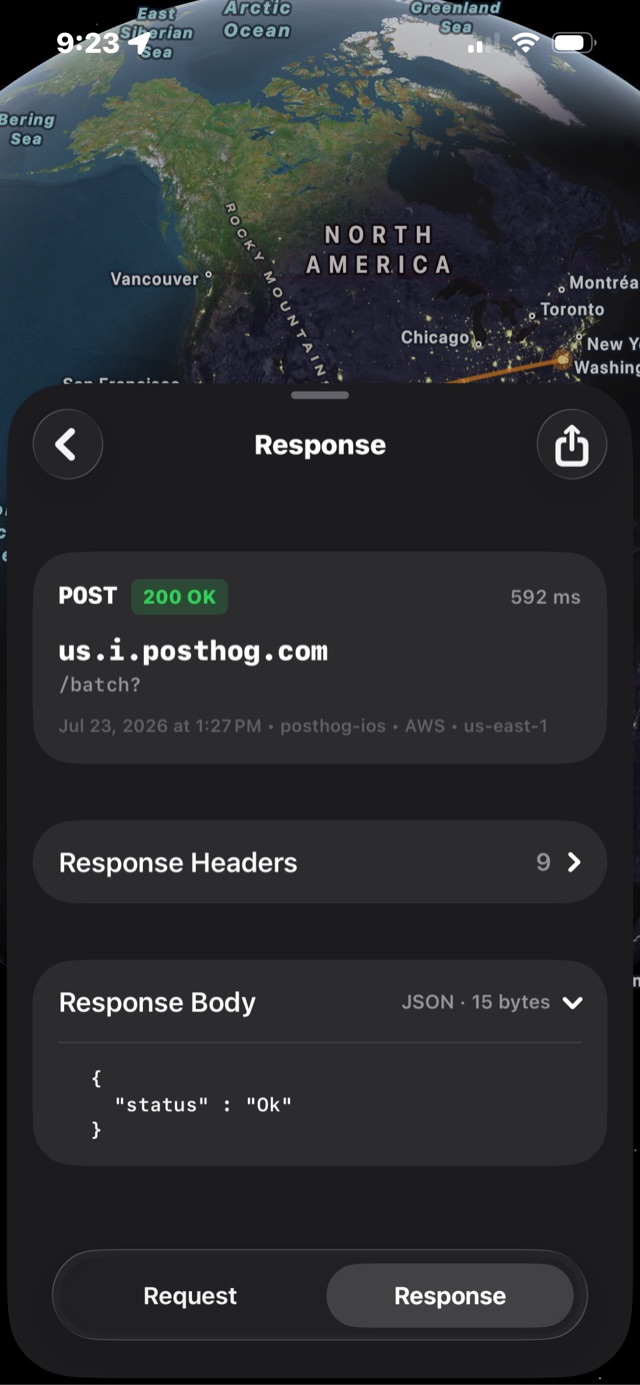
posthog-ios is the SDK that made the
request, taken from the User-Agent, and
AWS · us-east-1 is where the IP resolved to.
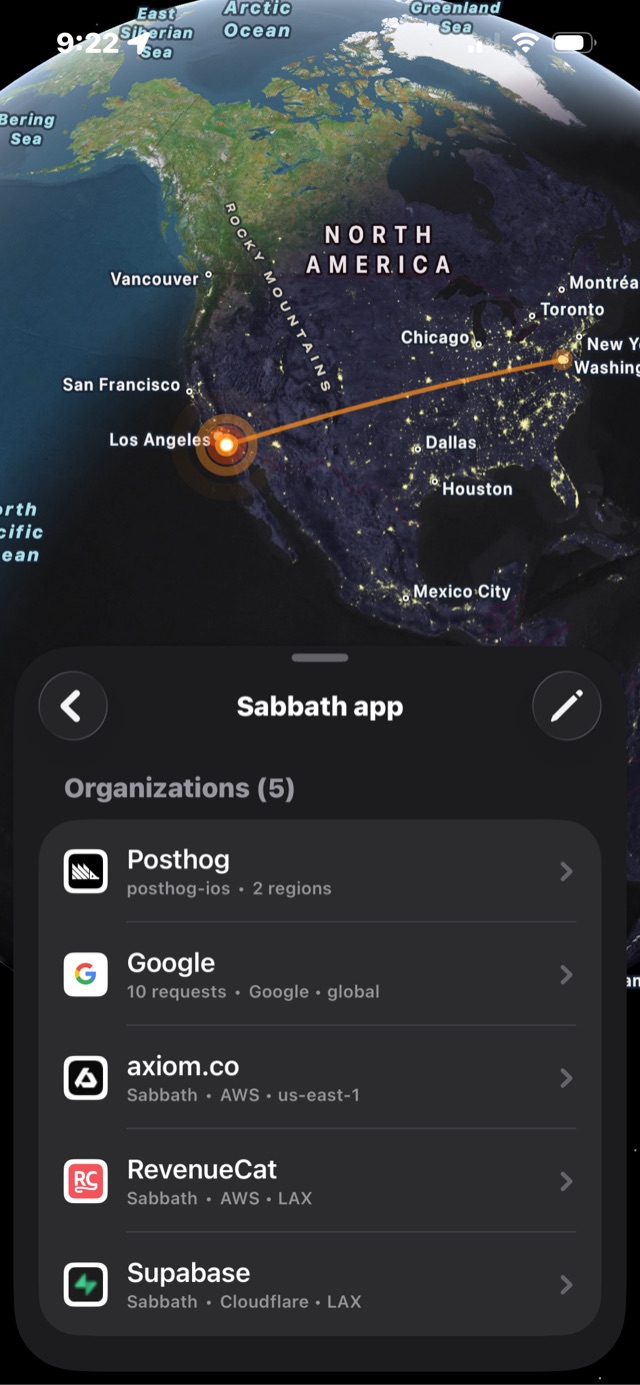
Tracer's angle is what it does with that: each hostname is mapped to the organization behind it and the session is grouped by company rather than by request. In a capture of one indie iOS app on 2026-07-23, five organizations showed up behind a single session — PostHog and Google for analytics, Axiom for logs, RevenueCat for subscriptions, Supabase for the backend.
One difference from desktop proxies is worth knowing before you compare results: every HTTPS host is decrypted for the whole session. Charles and Proxyman default to relaying connections encrypted until you enable SSL proxying for a hostname pattern, which is how traffic to endpoints you didn't think to add gets missed.
Two things change about your connections while you capture
A capture is not transparent, and you should know how it distorts before drawing conclusions from what you see. Two changes are deliberate, and both are visible in the recorded exchanges.
-
HTTP/2 becomes HTTP/1.1. Tracer advertises only
http/1.1in ALPN, both to the app and to the origin server, so a host that would normally negotiate HTTP/2 is spoken to over HTTP/1.1 for the duration. Every recorded exchange readsHTTP/1.1, and HTTP/2 behavior — multiplexing, header compression — is out of the picture. -
Connections aren't reused. Each forwarded request
goes upstream with
Connection: close, so the timings you see include a fresh TCP and TLS handshake every time. Read them as relative, not absolute, and don't benchmark through a capture.
Certificate pinning is the one thing that stops you
A pinned app rejects the inspector's certificate during the handshake, so for that host you get the hostname, the IP address and byte counts, but no plaintext — and the app usually shows a connection error until you stop capturing. Pinning doesn't hide traffic so much as refuse to produce it.
Pinning is per-host, not per-app. Most apps that pin, pin their own API and leave their analytics and ad SDKs on the system trust store, so every request to a host the app doesn't pin is still captured and decrypted in the same session. That's usually the part you wanted to read anyway.
Telling pinning apart from a broken trust setup is the annoying part,
because both look like "it doesn't work". The check is to evaluate the
inspector's own leaf certificate against the device's trust store: if
this device trusts a certificate the app just rejected, the app
is pinning. Tracer runs that check itself on the first leaf it mints for
a session — SecTrustEvaluateWithError with network fetch
disabled — and writes the verdict to the system log. A
trusted verdict means the rejection is app-side; an untrusted one means
an old profile is still installed or full trust was never enabled. There
is no way around a pin from an App Store app, and no desktop proxy does
better — SSL Kill Switch, Frida and a re-signed IPA all need a jailbreak.
What this method can't see
Proxy-based inspection only sees clients that honor proxy settings. That covers URLSession, CFNetwork and WebKit, which is most of what an iOS app does — and it means the following never appears in a capture:
- HTTP/3 and QUIC, which run over UDP and ignore NEProxySettings entirely, along with anything using raw sockets.
- Non-HTTP protocols — DNS lookups, push notifications over APNs, VoIP transports. Those need a packet capture, not a proxy.
- Traffic Tracer hides by default: Apple system hosts and Tracer's own requests are filtered out so they don't drown the session. Both are toggles in settings; turn the first one off if you're specifically hunting iOS system behavior.
Is installing a root certificate on your phone safe?
Trusting a root certificate gives whoever holds the matching private key the ability to impersonate any website to your phone. So the question isn't whether root certificates are dangerous in the abstract — it's where this particular key lives and who can use it.
Tracer generates its certificate authority on your device at setup: an
ECDSA P-256 key created in the Secure Enclave and marked
non-exportable, with a self-signed certificate naming it
CN=Tracer CA <8 hex digits>, O=Tracer, C=US. The
suffix is random per install, so no two users share a root. The app can
ask the Secure Enclave to sign with that key; it cannot read the key,
copy it, or send it anywhere, and neither can we. Leaf certificates are
minted per hostname, valid for seven days, and never leave the phone
either.
Three questions settle it for any inspector, ours included. Is the authority generated on the device or shipped inside the app binary — a baked-in root is the same key on every user's phone. Does captured traffic leave the device. And can you remove it completely: with Tracer that's Reset Certificate in the app's settings plus deleting the profile under Settings → General → VPN & Device Management, because the CA key lives in a shared keychain access group rather than the app's container.
When a computer is still the right answer
Two questions send you to a desktop. If you need to change traffic rather
than read it, rewrite rules and breakpoints are a desk job — Charles,
Proxyman and mitmproxy own it. If the question is below HTTP — a failed
handshake, a DNS lookup, a QUIC stream — that's a packet capture, which
means rvictl and Wireshark on a tethered iPhone, and nothing
on the App Store can do it.
Everything else favours the phone, which is the only place cellular traffic and other people's apps can be captured at all. If you're choosing between the iOS apps that do it, the Charles Proxy alternatives comparison has all five with versions and prices.
FAQ
Do I need a jailbreak to inspect HTTPS traffic on iPhone?
No. Decryption needs a root certificate you install and trust yourself, plus something on the device that terminates TLS. Both are standard iOS features available to App Store apps. Jailbreaking only becomes relevant if you want to defeat certificate pinning, which is a different problem.
Does on-device HTTPS inspection work on cellular, or only Wi-Fi?
It works on cellular. A manual HTTP proxy set in iOS Wi-Fi settings applies only to that one network, but proxy settings published by a NetworkExtension provider apply device-wide for as long as the tunnel is running, including over cellular.
Will apps break while I capture their traffic?
Only apps that pin certificates, and only for the hosts they pin. A pinned connection fails during the TLS handshake, so that host shows up with an IP address and byte counts but no plaintext, and the app usually displays a connection error until you stop capturing. Every other host in the same app decrypts normally.
Do I have to list the domains I want decrypted?
Not with Tracer: every HTTPS host is decrypted while a session runs. Desktop proxies like Charles and Proxyman default to the opposite — connections are relayed encrypted until you enable SSL proxying for a hostname pattern — which is why traffic to endpoints you didn't think to add is easy to miss.
Can I export the requests I capture on iPhone?
Yes. Tracer exports any captured exchange as a cURL command or a HAR 1.2 archive from the share sheet, which imports into desktop tools for analysis or replay. The HAR export guide walks through the file it produces, including what to redact before sending one to a vendor.
Generate the certificate on the phone, trust it deliberately, capture only while you're watching, and delete the profile when you're done — that's the whole discipline, whichever tool you use. Tracer is free to download and walks the three steps above as a checklist in about a minute, on cellular as readily as on Wi-Fi. The interesting part starts once the requests show up: see the teardowns for what tends to be in them.